
|
|
How Can I Update A New Resume or CV?
This can be done by either adding/editing the text OR by uploading a document. Read below for guides on the two options. To Add/Edit the Text in Your CV Adding text to your site is as easy as dragging any of the text elements to a page. The primary text elements are Text and Title.
Let's drag the most commonly used text element -- the one with the rather appropriate name of "Text" -- to this sample site. 
The text element is exactly what it sounds like: an element for writing text. Click inside the element to start writing. 
You can write a word, a sentence, or multiple paragraphs in a single element.
Or click in the box to edit text that has been previously written. 
As you write, take note of the gray toolbar at the top of the element. This is the text toolbar and it allows basic changes to the formatting of your text. It works much like any other such toolbar normally works: select the text you want to change and click the appropriate button to make that change. 
From left to right, you can bold your text, italicize it, underline it, make it bigger, make it smaller, change the color, create a link, adjust the alignment of all text within the element, create bulleted and numbered lists, and remove formatting. You may notice that one thing you cannot do is change the font family to a different style. That particular setting is controlled elsewhere (but just as easily changed) and we'll dig into it later in this guide. To add more text to the page we could continue writing in this same element or drag on a different text element:
To Add or Update Your CV as a Document
You have the option to upload and link to pretty much any kind of document, allowing a visitor to download it to their computer. Or you can embed a document so it is directly visible on a page. Let's take a look at both options, starting with the one we recommend.
Link to a Document (or Other File)
You can create a link to a document either by highlighting the text you want to link or clicking on an image. Then selecting the appropriate link option for either. If you're linking text, it'll look like this: 
If you're linking an image, it'll look like this:
Either option will open a link dialog box from where you'll need to select File and then click the Upload a File button.
And then select the file you want to upload from your computer. Then you're all done! The link will be live and clickable on your Published site, allowing your visitors to download the file directly to their computers.
Embed a Document to a Page You can also add a PDF, Word file, or other document directly to a page using our Embedded Document element (which is provided by a company called Scribd). We do not recommend the use of this element; linking to the documents as described in the guide above is a much better way to provide access to them. Linking to a downloadable PDF is usually the best, most professional way to provide finished documents to your visitors. If you're not sure how to create a PDF, there's very likely some free options for creating basic PDFs right on your computer. But if you still want to embed a document, drag that element to a page (you can find it under the Media section of Elements): 
Click the indicated area of the element and the select the Upload File option from the toolbox. 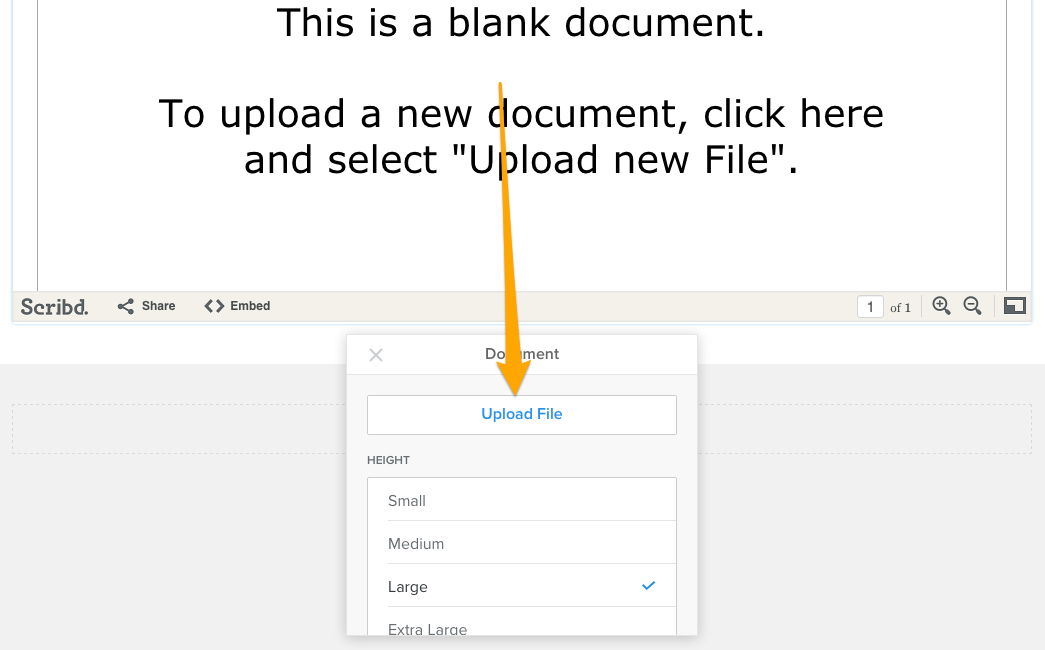
Then select the file you want to upload from your computer. Give the file a little time to upload and you're all done! And we want to stress again that embedding a PDF or document in this way is not a normal thing to do on a website and you have little control over how the document looks once you upload it. The best approach is to link to the file as described earlier. |


The World's #1 Website Design & Hosting Service For Actors
Request Access & GET EXCLUSIVE TODAY!
Request Access & GET EXCLUSIVE TODAY!
#GetActingExclusive2017
Client Portal & Site Editor
Get Exclusive Today!
|
Site Editor User Guides
|
Site Editor User Guides
Designed For Actors
Update My Resume or CV Upload New Headshots Upload New Demo Reel Upload New Voice Reel Support
|
Copyright 2017 © The Exclusive Actor. All Rights Reserved.
The World's #1 Website
Design & Hosting
Service For Actors
Request Access &
GET EXCLUSIVE TODAY!
Design & Hosting
Service For Actors
Request Access &
GET EXCLUSIVE TODAY!
#GetActingExclusive2017
Client Portal & Site Editor
Get Exclusive Today!
I live in:
United States
Canada
United Kingdom (BETA)
Australia (BETA)
New Zealand (BETA)
My Country Isn't Listed :(
United States
Canada
United Kingdom (BETA)
Australia (BETA)
New Zealand (BETA)
My Country Isn't Listed :(
Site Editor User Guides
Access All: Site Editor User Guides
Beginners Guide: Start Here
Designed For Actors
Update My Resume or CV
Upload New Headshots
Upload New Demo Reel
Upload New Voice Reel
Beginners Guide: Start Here
Designed For Actors
Update My Resume or CV
Upload New Headshots
Upload New Demo Reel
Upload New Voice Reel
Support
Copyright 2017 ©
The Exclusive Actor. All Rights Reserved.
The Exclusive Actor. All Rights Reserved.